Quick Guide: Adding an Organization
Organizations
Adding an Organization
1. Click on the Organization Module
2. Click on the +Org button above the filters
This will bring up an Organization screen allowing a user to enter pertinent information.
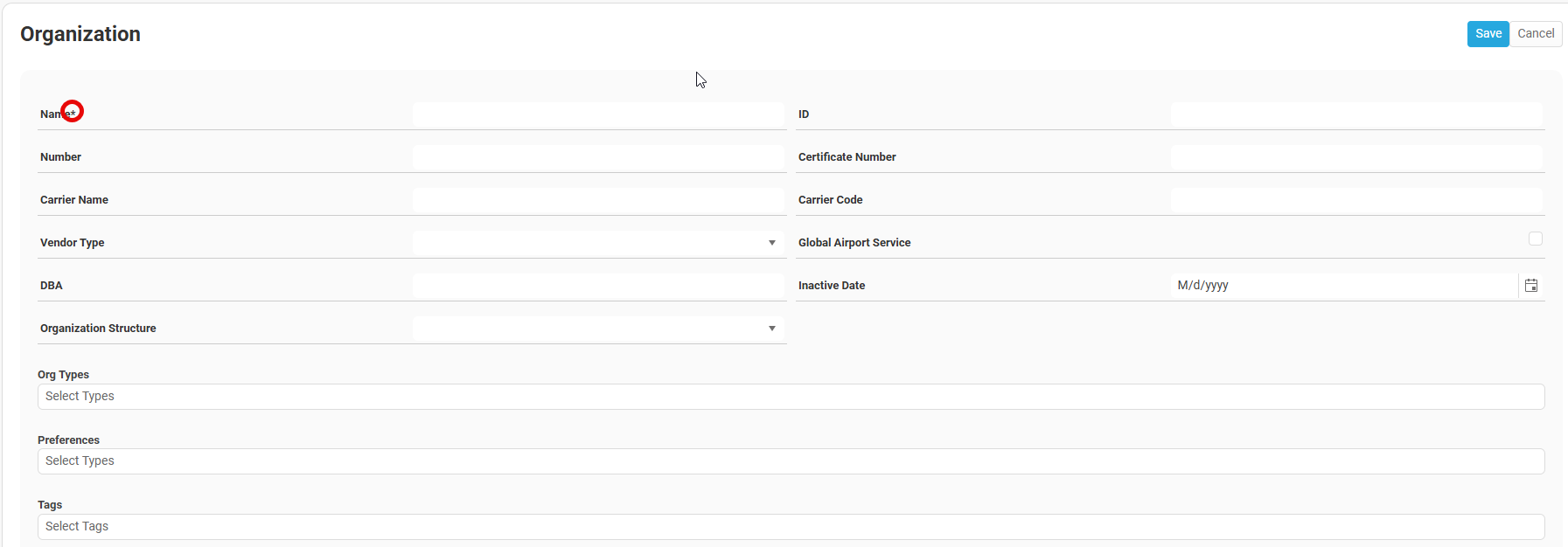
*Name is mandatory
1. Name*: Enter a name for the new Organization.
2. Number: Enter an alphanumeric designator for the new Organization.
3. Carrier Name: If the Organization has a carrier name, enter that name here.
4. Vendor Type: Specify a vendor type here.
5. DBA: If the Organization has a "Doing Business As" document, enter that here.
6. Organization Structure: Org structures can be identified here. *future release
7. ID: Often a three letter identifier for an Organization.
8. Certificate Number: Carrier Cert #"s can be entered here.
8. Certificate Number: Carrier Cert #"s can be entered here.
9. Carrier Code: If the organization has a carrier code, enter that here.
10. Global Airport Service: If this Organization is a vendor, AND this org will serve worldwide airports for your dept, check this box. It will populate this Organization as a vendor to ALL airports in the Horizon system. This makes this Organization selectable in the services area of a trip.
11. Inactive date: A date can be entered here if this Organization will no longer be used. This action will hide the Organization from view after the entered date.
11. Inactive date: A date can be entered here if this Organization will no longer be used. This action will hide the Organization from view after the entered date.
Org Types
Different labels can be chosen in this field which allows for greater filtering throughout the Horizon system.
Different labels can be chosen in this field which allows for greater filtering throughout the Horizon system.
Preferences
Different preference labels can be chosen here. This is for filtering purposes.
Different preference labels can be chosen here. This is for filtering purposes.
Tags
Different Tags can be chosen here. This is for filtering purposes.
Click "Save" in the upper right hand corner of the screen. This will open up further options for your new Organization.
Different Tags can be chosen here. This is for filtering purposes.
Click "Save" in the upper right hand corner of the screen. This will open up further options for your new Organization.
Further Options
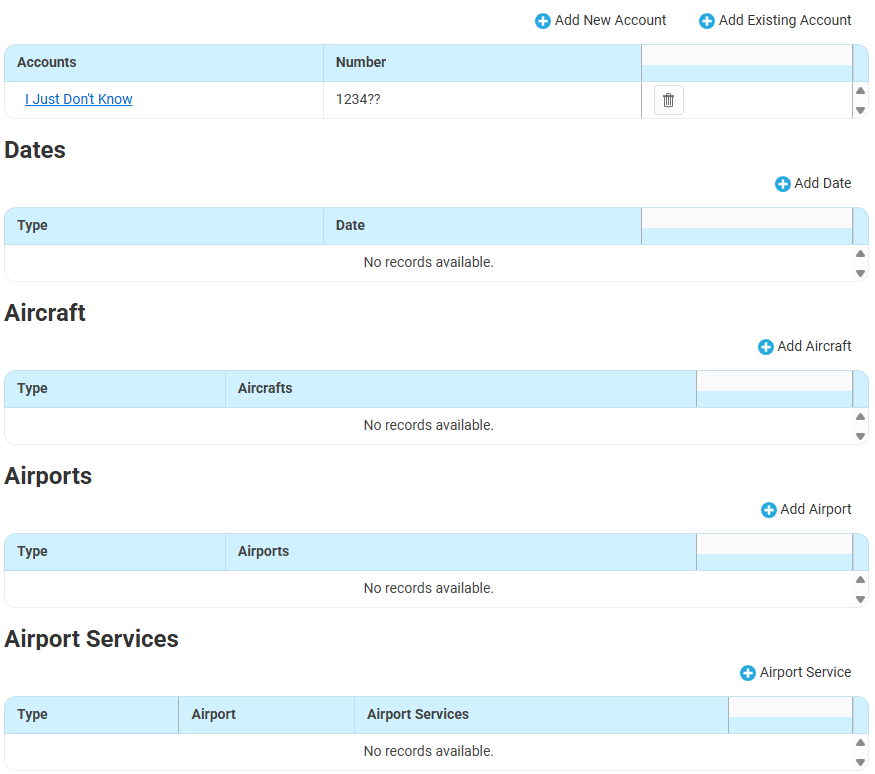
Accounts: + Add New Account & + Add Existing Account can be used to associate the Organization to an account.
Dates: Various dates around an Organization can be chosen here. Items such as initial review, audit, new certificate, etc.
Aircraft: Tails can be associated with the Organization
Airports: Airports can be specified in this area. Preferred alternates, Home Base, preferred can be specified here.
Airport Services: Airports and associated services can be defaulted here. This is where a user would specify a preferred FBO or caterer. This selection will override the company default.
Contacts: Contact information for the Organization can be specified here. See our article on Contact info. Horizon Conact Info article
Documents: Documents associated with an Organization be viewed/manipulated here.
Notes: See our article on Notes.
Audit Logs: Audit Trail area pertaining to Organizations.
Audit Logs: Audit Trail area pertaining to Organizations.
Related Articles
Quick Guide: Adding an Account
Accounts See our article on the Account page in general. Accounts article Adding an Account In the Account Page, click on the + Account button. This will display a blank Account page to enter new Account information. * items (Name, Number) are ...Quick Guide: Contact Information
Contacts The Contact information area is present within the Services, Aircraft, People, and Organizations modules within Horizon. This feature is designed to allow users to input and save various contact information types within a record. Adding a ...Basic Feature Guide for Horizon
This guide provides a detailed walkthrough of the new software designed to streamline the management of your private aircraft crew and fleet. We'll cover personnel data, crew qualifications, scheduling, aircraft maintenance, and more, all within a ...Gmail Integration Setup Guide
Overview This guide explains how to configure Gmail as the email provider in Horizon. Once configured, Horizon will use the connected Gmail account to send and receive emails related to trip communications, notifications, and other system messages. ...Quick Guide: Creating a Trip from the Aircraft Schedule
This guide outlines the steps to create a new trip directly from the Aircraft Schedule. 1. Initiate New Trip: Left-click on the column representing the day you wish to schedule the trip. Locate the "New Trip" section. (Note: If the "New Trip" section ...