Horizon: General Navigation
General Navigation
Main areas accessible within Horizon are labeled across the top of your screen
Areas that are accessible to you, as a user, are listed across the top of your Horizon screen. Each area is clickable and will open the corresponding page. Bear in mind that what you see vs a co-worker or manager may be different. Not all areas of the system are accessible to all users. The areas and functions that a user can access and/or manipulate are based on your user permissions.
In general, areas that can be accessed consist of:
In general, areas that can be accessed consist of:
- Home
- Services
- Legs
- Flights
- Schedule
- Trips
- Accounts
- Aircraft
- Airports
- Organizations
- People
- Reports
- Log Out
- Access Management
- More/System
You may have noticed some downward arrows next to areas like Schedule or Aircraft.
These downward arrows show that a "sub-menu" is present. These sub-menu's allow you access a related page under your area of choice.
Example:
Example:
If you click on Aircraft, the Aircraft page will appear.
If you hover on the downward arrow, Models will be visible. You can click on Models and access the Models page of Horizon.
If you hover on the downward arrow, Models will be visible. You can click on Models and access the Models page of Horizon.
2. Filters
Filters that are available to you vary according to the area and/or page that you are currently viewing. The filters that are in the Aircraft area are not the same as filters in the Organizations.
*Remember that if you want to hide the filter list, click the "filter" icon on the top left of the filter list. Your screen real estate just got a whole lot bigger.

*Remember that if you want to hide the filter list, click the "filter" icon on the top left of the filter list. Your screen real estate just got a whole lot bigger.
3. Lists
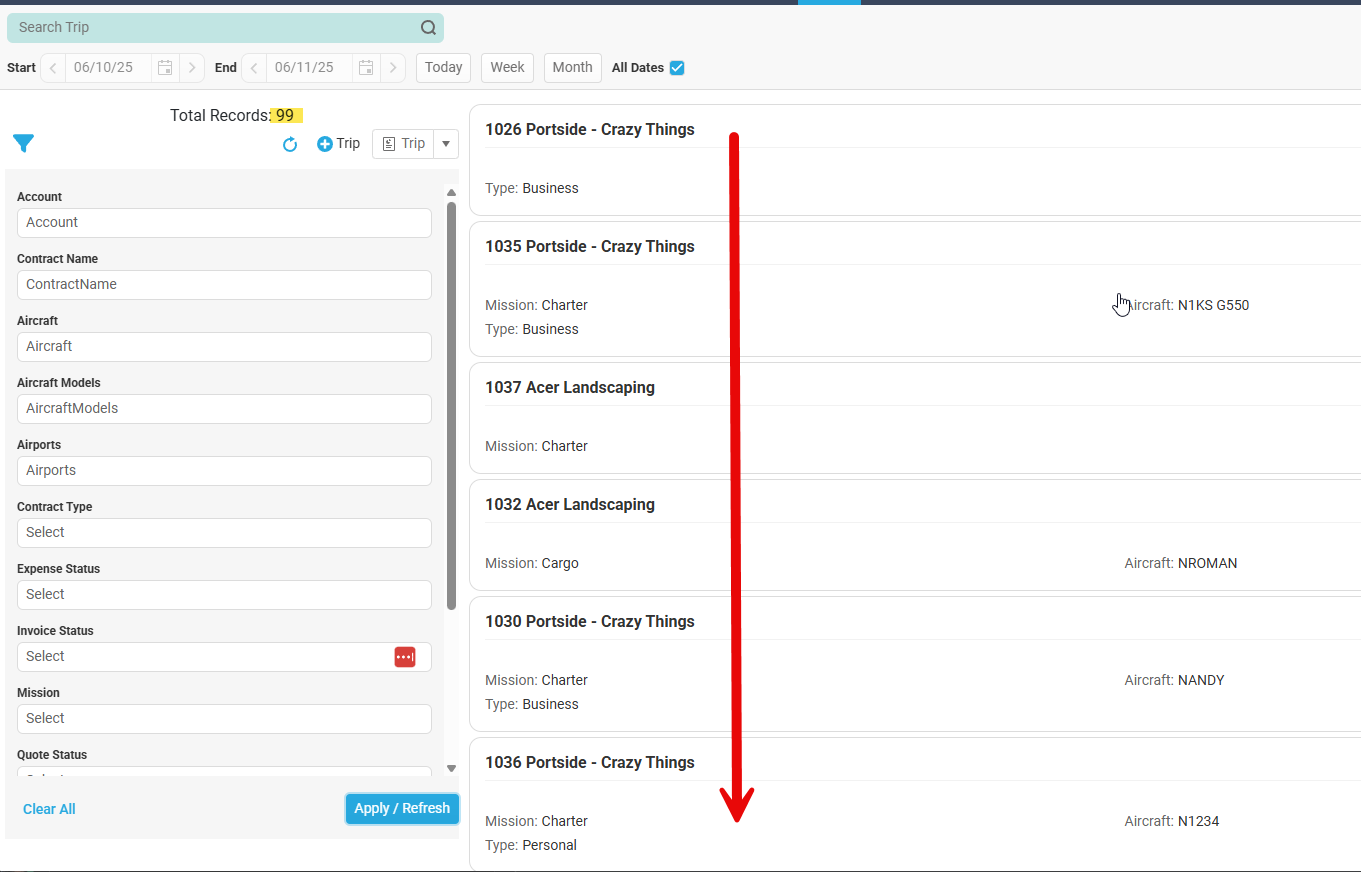
Throughout Horizon, you will see a common design philosophy. Filters on the left, lists on the right. In the example given, a user can see the various filters applied, the total records showing, as well as the actual trips listed vertically on the right side of the screen. As your filters change, so do the # of items in your list.
4. Expand vs Expand All
In many areas within Horizon, a user will see small single and double arrows on the screen. 
A single arrow is an "expand" button, while the double arrow is expand all. This allows a user to choose how much detail to see on their screen at any given time.
5. Horizontal expand/hide
Horizon has a handy expand/contract functionality built into the interface.
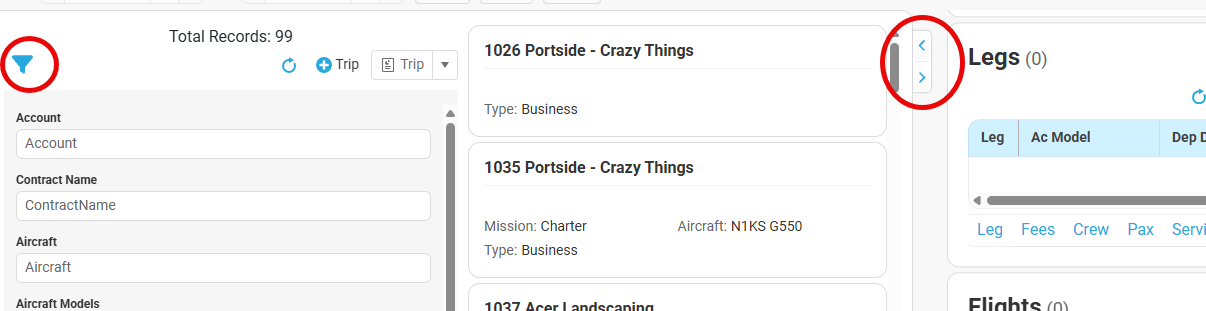
Pressing on the filter button above filters will hide the filter screen completely. Pressing on the left/right pointing arrows will hide the list column, or expose it. This aids users in adapting the view within Horizon to their various screen sizes.
6. General Concepts
- Horizon is designed to expand vertically. As you dive deeper into the presented information, the page will expand automatically. This negates the need to navigate away when searching for information.
- Horizon is browser based, you can use tabs to your advantage. Users can open multiple tabs and flip back and forth between them. It is possible to have different tabs on multiple monitors.
- Horizon is permissions based. Your user role assigned by a supervisor/manager will determine what you see and what you can touch.
.
Related Articles
Accessing and Managing Airport Details in Horizon
Overview This article explains how to view and manage airport-specific data within the Horizon platform, including Hotels, Maintenance, Ground Transportation, Documents, Notes, and Audit Logs. Sections Overview Hotels Displays hotels associated with ...Viewing and Managing Airport Records in Horizon
Purpose This article provides guidance on how to search for, view, and interpret airport records in the Horizon Airports module. This module allows users to access detailed airport data, including identifiers, location information, facilities, fuel ...Basic Feature Guide for Horizon
This guide provides a detailed walkthrough of the new software designed to streamline the management of your private aircraft crew and fleet. We'll cover personnel data, crew qualifications, scheduling, aircraft maintenance, and more, all within a ...Horizon Alerts
Horizon Alerts Alerts are present for Quotes, Legs, as well as Flights. Horizon presents these Alerts to users, aiding in visibility of regulation violations, Legality Checks, or Notes that have been set up to Alert. Success Clicking on the Success ...Setting Preferred Services at an Airport in Horizon
Purpose This article provides step-by-step instructions on how to set preferred Fixed Base Operator (FBO) or service providers at a specific airport in Horizon. Preferred service designations help ensure that dispatchers, schedulers, and crew members ...