Horizon Alerts
Horizon Alerts
Alerts are present for Quotes, Legs, as well as Flights. Horizon presents these Alerts to users, aiding in visibility of regulation violations, Legality Checks, or Notes that have been set up to Alert.
Success
Clicking on the Success box in Alerts will alter the users view. This view is only present when the Success box is checked. This view allows a user to see any successful check that Horizon has completed. This view answers the question, "what is Horizon checking?"
Frequency of Alert checking
From the current date, all trips within the subsequent 48 hours are checked automatically every 60 minutes. This occurs in the background with no intervention or activation by the end user.
From the current date, all trips occurring from 48 hours to 7 days out will be automatically checked once per day. This occurs in the background with no intervention or activation by the end user.
Every time a trip is edited and saved, Alerts are run by Horizon. This is regardless of date.
Notifications
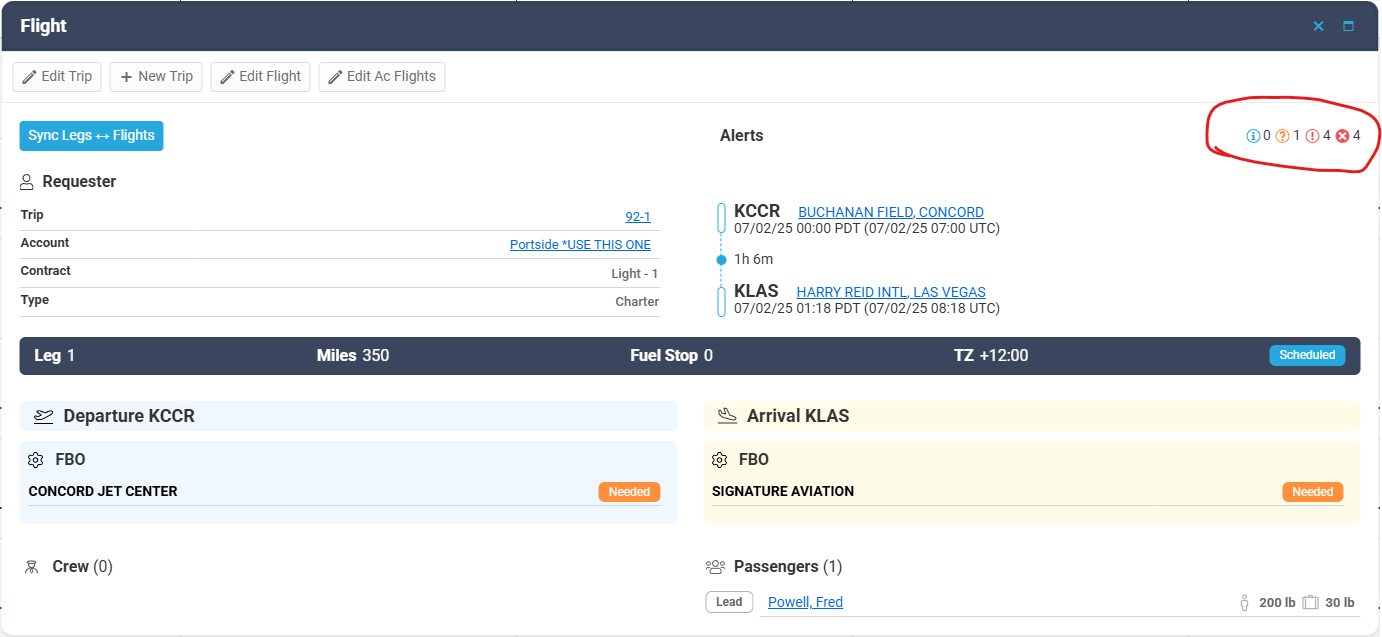
Alert types will show along with their respective number.
"i" shows the number if Informational Alerts
"?" shows the number of Warning Alerts
"!" shows the number of Violation Alerts
"x" shows the number of STOP Alerts
"i" shows the number if Informational Alerts
"?" shows the number of Warning Alerts
"!" shows the number of Violation Alerts
"x" shows the number of STOP Alerts

STOP Alerts cannot be acknowledged unless users have specific permissions to do so.
On the schedule and calendar views, any trip that contains unacknowledged alerts will flash a red box.
In the Trip Pop Up window, Alerts will present themselves in the top right corner
Acknowledgement
The process of acknowledging an Alert depends of the severity.
Clicking the blue checkmark on the right of the Alert will allow users with proper permissions to acknowledge an Alert. When this is done, a timestamp is recorded. Clicking the "+" sign to the left of the Alert will open a text box for inputting of Notes.
Clicking the blue checkmark on the right of the Alert will allow users with proper permissions to acknowledge an Alert. When this is done, a timestamp is recorded. Clicking the "+" sign to the left of the Alert will open a text box for inputting of Notes.
Informational and Warning Alerts allow users to click the blue checkbox.
Violation level Alerts must have a note inputted prior to the blue checkbox being pressed.
STOP level Alerts only allow acknowledgement by users with specific permissions,
Violation level Alerts must have a note inputted prior to the blue checkbox being pressed.
STOP level Alerts only allow acknowledgement by users with specific permissions,
Related Articles
Basic Feature Guide for Horizon
This guide provides a detailed walkthrough of the new software designed to streamline the management of your private aircraft crew and fleet. We'll cover personnel data, crew qualifications, scheduling, aircraft maintenance, and more, all within a ...Horizon: General Navigation
General Navigation Main areas accessible within Horizon are labeled across the top of your screen Areas that are accessible to you, as a user, are listed across the top of your Horizon screen. Each area is clickable and will open the corresponding ...Accessing and Managing Airport Details in Horizon
Overview This article explains how to view and manage airport-specific data within the Horizon platform, including Hotels, Maintenance, Ground Transportation, Documents, Notes, and Audit Logs. Sections Overview Hotels Displays hotels associated with ...Viewing and Managing Airport Records in Horizon
Purpose This article provides guidance on how to search for, view, and interpret airport records in the Horizon Airports module. This module allows users to access detailed airport data, including identifiers, location information, facilities, fuel ...Setting Preferred Services at an Airport in Horizon
Purpose This article provides step-by-step instructions on how to set preferred Fixed Base Operator (FBO) or service providers at a specific airport in Horizon. Preferred service designations help ensure that dispatchers, schedulers, and crew members ...