FuelAssist Integration
FuelAssist Integration
Overview
The FuelAssist integration connects Horizon with the FuelAssist trip support services platform. FuelAssist provides fuel ordering capabilities for flight departments.
When enabled, dispatchers can interact with FuelAssist directly from the trip itinerary’s Services section to automate the process of ordering fuel for each flight leg.
How to Set Up the Integration
Prerequisites
- An active TripAssist account
- API credentials provided by FuelAssist
- Administrator access in Horizon
- Notification steps have been completed around clients' various fuel providers
Configuration Steps
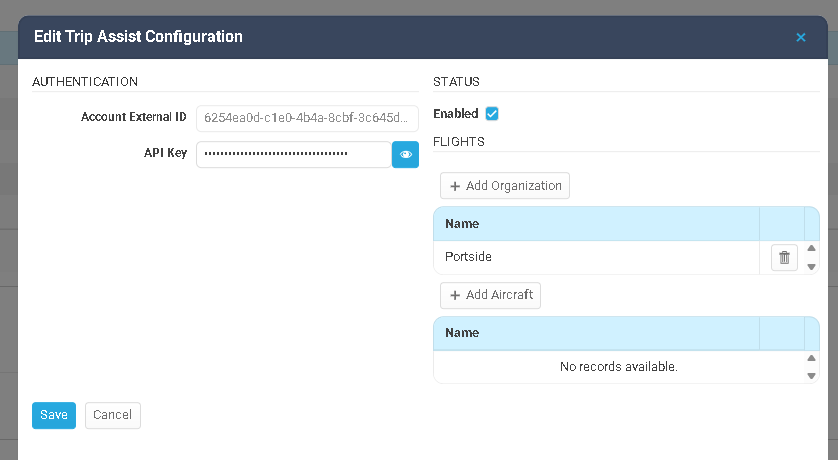
- Navigate to System Configuration > Integrations in Horizon.
- Locate the TripAssist integration section.
- Enter the required credentials provided by TripAssist.
- Click Save and test the connection.
- Once configured, TripAssist features will appear within the Services section of the trip itinerary.
How Data Syncs Between the Two Systems
Sync Direction
| Direction | Data | Trigger |
|---|---|---|
| Horizon → TripAssist | Flight details (airports, times, aircraft, passenger counts) | Flights are synced automatically as they are created/updated |
| TripAssist → Horizon | Fuel order services | Automatic — reservation data syncs back after services are ordered |
What Passes Through
From Horizon to TripAssist:
- Flight leg details (departure/arrival airports, dates, times)
- Aircraft information (tail number, model, size)
- Passengers and crew
From TripAssist to Horizon:
- Fuel order records and detail line items
- Confirmations and vendor details
- Booking status updates
- Cost estimates and final charges
Sync Behavior
- Service ordering through TripAssist is initiated manually from the trip’s Services section.
- Reservation data from TripAssist syncs back to Horizon automatically.
- Each reservation is linked to the originating trip and leg.
How to Use FuelAssist in Horizon
Ordering Services from the Trip Itinerary
TripAssist is accessed directly from the Services section within the trip itinerary. This is where dispatchers order ground services for each flight leg.
Step-by-step:
- Open a trip and navigate to the Itinerary section.
- Expand the leg you want to order services for.
- Open the Services section within the leg detail.
- Select the Fueler service type for departure or arrival which will launch the fuel ordering view
- Submit the fuel order and close the window. The service will automatically show in the services area for the relevant leg. If you expand the service, you can see the additional fuel specific details
Viewing Reservation Confirmations
After fuel is ordered through FuelAssist, reservation data syncs back to Horizon automatically.
How to view:
- Return to the Services section on the leg.
- Reservation records appear with vendor details, booking confirmations, and cost estimates.
- Each reservation is linked to the specific leg it was ordered for.
Services Across All Trips
You can also view fuel across all trips from the Services module (accessible from the main navigation). This provides a cross-trip view of all fuel orders and their statuses.
Troubleshooting
FuelAssist options are not showing in the Services section
- The FuelAssist integration has not been enabled for your organization. Contact your system administrator to configure the integration.
- Verify the trip has at least one leg with valid airports and dates.
Service requests are not going through to FuelAssist
- The connection to FuelAssist may have failed. Verify your credentials are valid in System Configuration > Integrations.
- Verify that the airports on the trip legs are supported by FuelAssist.
Reservation data is not appearing in Horizon
- After ordering services through FuelAssist, allow a moment for reservation data to sync back.
- Check the Services section for the specific leg — reservations are linked per-leg.
Best Practices
- Review reservation details — After fuel is booked through FuelAssist, review the reservation records in Horizon to verify accuracy.
- Update services when itinerary changes — If flight times, airports, or aircraft change, update service orders through FuelAssist to reflect the changes.
Related Articles
Wyvern Integration
Wyvern Integration Overview The Wyvern integration connects Horizon with the Wyvern safety and compliance platform. Wyvern provides aviation safety auditing, crew vetting, and compliance management services. This integration enables crew data to be ...Integration: CAMP
Overview The CAMP Systems integration connects Horizon FMS with CAMP Systems, the industry- standard aircraft maintenance tracking, compliance, and parts inventory management platform. This integration syncs maintenance item data from CAMP into ...Veryon Integration
Veryon Integration Overview The Veryon integration connects Horizon with the Veryon (formerly ATP) aircraft maintenance tracking platform. This integration automatically syncs maintenance item data from Veryon into Horizon, giving operations teams ...Traxxall Integration
Traxxall Integration Overview The Traxxall integration connects Horizon with the Traxxall cloud-based aircraft maintenance tracking and management platform. This integration syncs maintenance item data from Traxxall into Horizon, giving operations ...FlightSafety International (FSI) Integration
FlightSafety International (FSI) Integration Overview The FlightSafety International (FSI) integration connects Horizon with the FlightSafety training management platform. FlightSafety is a leading provider of pilot and crew training programs. This ...